
How to Change Your Password
Follow the steps below to update your administrator password from within the application without needing to follow Forgot Password steps.
Administrators can now change their password directly within the application — no need to wait for a password reset email. This new self-service option is available immediately from the Account dropdown menu.
|
Step |
Action |
Details |
|
1 |
Open the Account Menu |
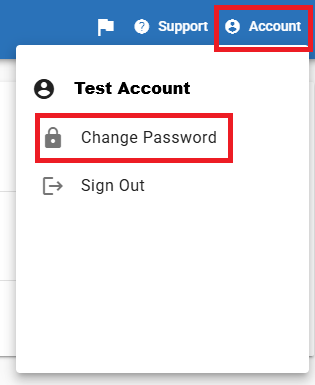
Click the Account icon in the top-right navigation bar. A dropdown menu will appear showing your username at the top. |
|
2 |
Select Change Password |
Click the Change Password option (lock icon) from the dropdown. This opens the password change dialog directly in the app. |
|
3 |
Enter Your Current Password |
Type your existing password in the Current Password field to verify your identity. |
|
4 |
Enter a New Password |
Type your new password in the New Password field. Passwords must meet your organization's complexity requirements. |
|
5 |
Confirm and Save |
Re-enter the new password in the Confirm Password field and click Save. Your password will be updated immediately. |
Requirements & Notes
Password Requirements
- Minimum 8 characters (your organization may require more)
- Must include at least one uppercase letter, one number, and one special character
- Cannot be the same as your last 5 passwords
- Cannot contain your username or display name
Who Can Use This Feature
- All administrator-level accounts have access to the in-app password change
- Standard and read-only users follow the same process via the standard Forgot Password link
- Single Sign-On (SSO) users manage passwords through their identity provider and will not see the Change Password option
Compared to the Previous Process
|
|
Previous Method (Email Reset) |
New Method (In-App) |
|
Steps required |
4–6 steps (request, receive email, click link, set password) |
5 steps, all in-app |
|
Email required |
Yes |
No |
|
Takes effect |
After clicking link in email |
Immediately |
Troubleshooting
Change Password option is not visible
If you do not see Change Password in the Account dropdown, your account may be configured to use Single Sign-On (SSO). SSO users must manage their passwords through their identity provider (such as Okta, Azure AD, or Google Workspace). Contact your IT team for assistance.
Error: Current password is incorrect
Ensure you are entering your current active password. If you have forgotten it, use the Forgot Password link on the login screen to request a reset email as usual.
Error: New password does not meet requirements
Review your organization's password policy. Common causes include insufficient length, missing character types, or reuse of a recent password. Try a new combination that meets all listed criteria.
For additional support, contact your system administrator or submit a ticket via the Help Center. | tickets@konexus.com