
Trust a device when you sign in
You trust a device at the moment you verify your sign-in. There is no separate setup step.
- Sign in with your email and password as usual.
- On the Check your email screen, find the 6-digit code we sent to your email address. Codes expire after 10 minutes; select Resend code if it doesn't arrive.
- Enter the code in Verification code.
- Select Trust this device for 30 days. It is unchecked by default.
- Optional: in Device name, replace the default (for example, "Firefox on Windows") with a name you'll recognize, such as "My Work Computer".
- Select Verify.
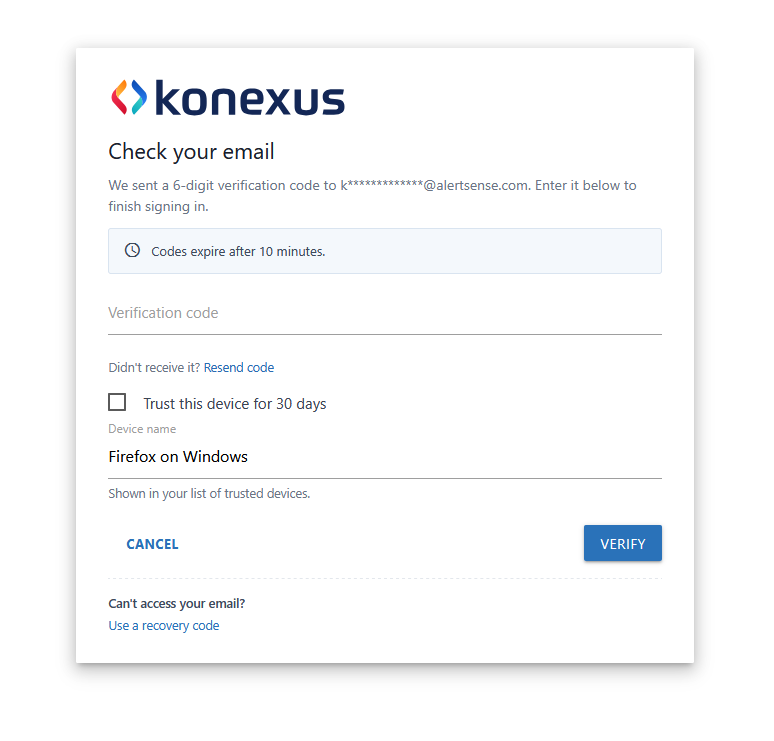
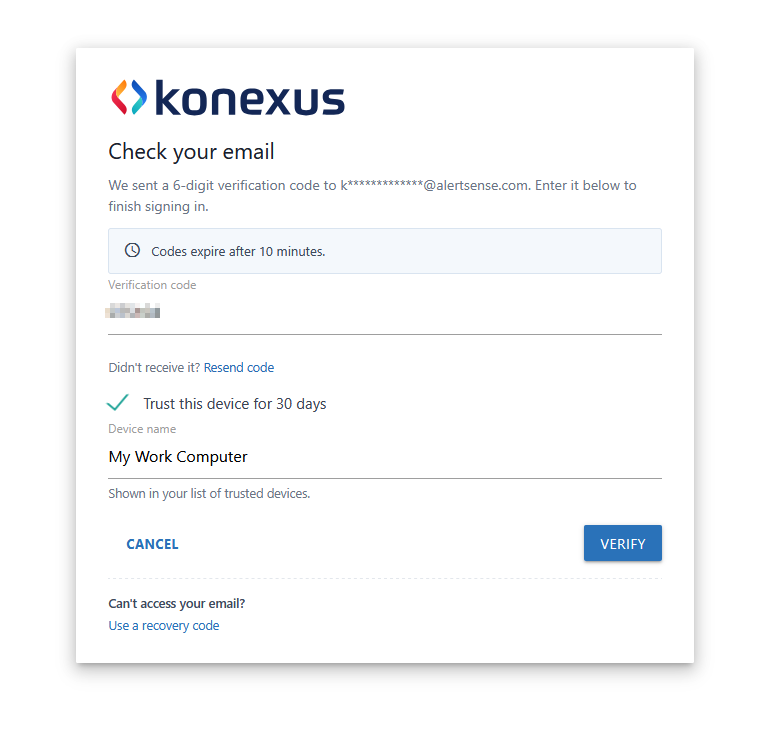
Can't get into your email? Select Use a recovery code at the bottom of the screen instead.
View your trusted devices
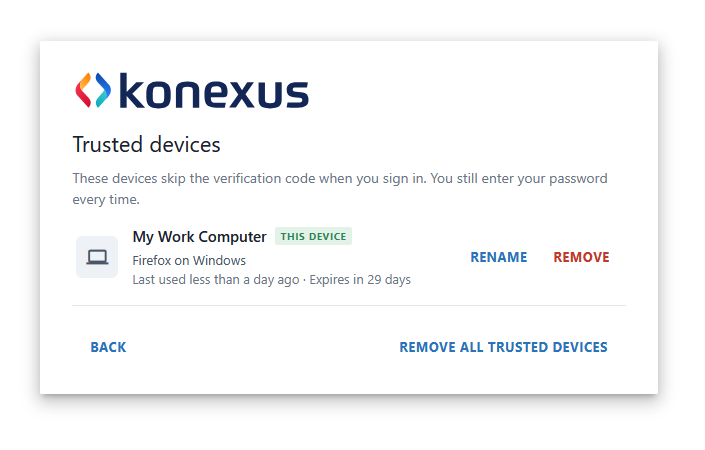
Your trusted devices are listed under Security & sign-in. The Trusted devices row shows how many you have; select Manage to open the list.
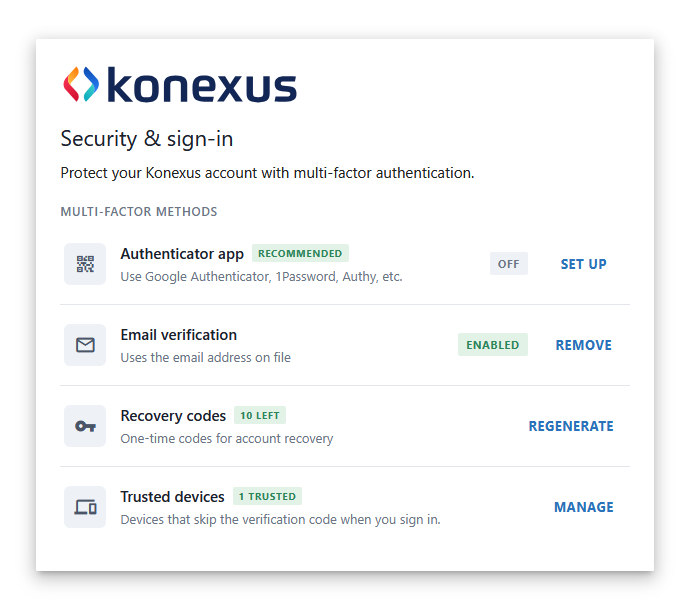
Each device in the list shows:
- Name — the name you gave it, with a This device tag on the one you're using now
- Browser and operating system — for example, Firefox on Windows
- Last used and Expires — how recently it signed in and how many days of trust remain
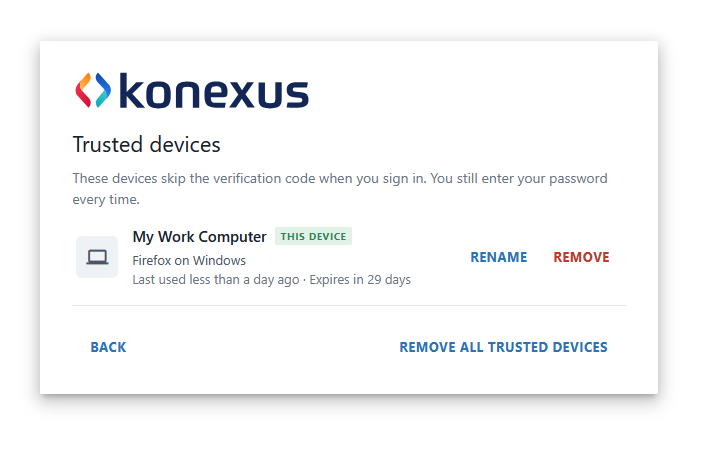
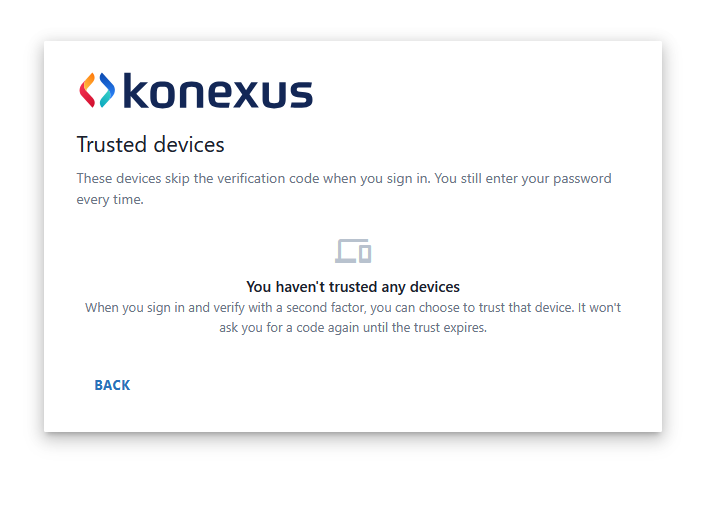
If you haven't trusted any devices, the list is empty and explains how to add one.
Rename a trusted device
- In your Trusted devices list, select Rename next to the device.
- Type a new name in Device name. Leave it blank to go back to the default (for example, "Firefox on Windows").
- Select Save.
Remove trusted devices
Removing a device means it will ask for a verification code again at its next sign-in.
To remove one device: in your Trusted devices list, select Remove next to it.
To remove every trusted device at once:
- In your Trusted devices list, select Remove all trusted devices.
- Review the count shown, then select Remove all. Select Cancel to keep them.
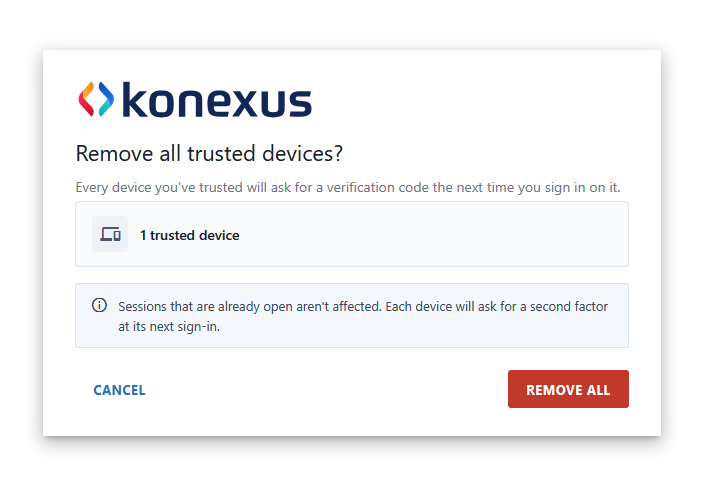
Sessions that are already open aren't signed out. Each device asks for a second factor the next time it signs in.
Good to know
Do I still need my password? Yes. A trusted device skips only the verification code. You enter your password every time.
How long does trust last? 30 days from when you verify. After it expires, you'll be asked for a code again and can choose to trust the device for another 30 days.
Should I trust a shared or public computer? No. Only trust devices that you alone use, such as your own work laptop.
What if a device is lost or stolen? Sign in from another device and select Remove next to it, or Remove all trusted devices if you're unsure which one. That device will need a verification code at its next sign-in.
Does trust apply across browsers? Trust is saved per browser on a device. A different browser on the same computer shows up as its own device and asks for a code.
How else can I protect my account? Under Security & sign-in, you can also set up an authenticator app (recommended) and keep your recovery codes somewhere safe.
Need help?Contact Konexus Support if you can't verify your sign-in, can't reach your email, or see a trusted device you don't recognize.